
Inviting team members and assigning roles
by Platuni | 30 Dec, 2025 | 5 mins read
Platuni
30 December, 2025
5 mins read
Platuni Property Manager is built for teams. Whether you oversee a single building or manage a large portfolio across several locations, each member of your staff needs the right level of access to work efficiently and securely. Inviting team members and assigning roles ensures that every person sees the tools they need, avoids sensitive information they do not require and stays aligned with the responsibilities of their position.
This guide explains the most common roles, how to invite users through the admin area and how to manage access as your team grows or changes.
Suggested roles in Platuni Property Manager
Roles determine which features a team member can view or modify. Assigning the correct role keeps your workflow clean and protects sensitive data.
Below are common role types used by property teams.
Owner
The owner has full access to everything in the account. This role is usually held by the business owner, director of operations or a senior manager who oversees all properties. This role can add or remove users, change settings, view financial reports and manage all properties across the portfolio.
Best suited for
• Business owners • Directors or heads of property operations
Portfolio manager
Portfolio managers have broad access but may focus on a specific set of properties. They can manage listings, applications, payments, maintenance and communication for all assigned locations. They can also review performance across buildings in their portfolio.
Best suited for
• Regional managers
• Multi property supervisors
• Team members who oversee several buildings
Site manager
Site managers focus on daily operations within one building or a small group of properties. They manage listings, applications, maintenance requests and resident communication for their assigned units. Their access is narrower than a portfolio manager but deeper within the properties they manage.
Best suited for
• Onsite staff
• Building supervisors
• Leasing managers working at specific locations
Maintenance lead
Maintenance leads manage all maintenance activity. They can view and assign work orders, update progress, communicate with residents about repairs and close completed tasks. This role does not require access to financial information or applications.
Best suited for
• Maintenance supervisors
• Facilities teams • External vendors you trust with portal access
Finance user
Finance users focus on payments, charges, payouts and accounting exports. They can view and reconcile transactions across the portfolio but do not need access to resident communication or maintenance details. This role keeps financial activity structured and separate from daily operations.
Best suited for
• Accounting teams
• Bookkeepers
• Financial controllers
Read only analyst
Read only analysts can view data but cannot make changes. They can review reports, occupancy numbers, listings, maintenance trends and payments without the ability to edit or approve anything. This role is useful for auditors, consultants or new team members who are still learning the system.
Best suited for
• Analysts
• Consultants
• Interns
• Temporary reviewers
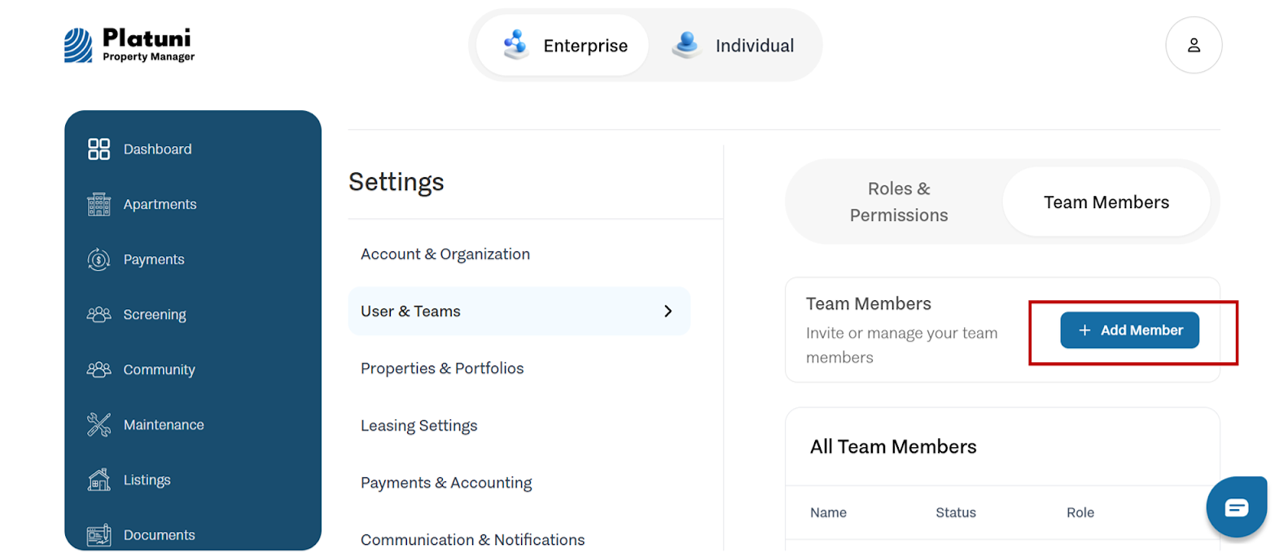
How to invite a new user from the admin area
Inviting team members is simple and can be done at any time. The process ensures each person receives the correct permissions from the start.
Steps
- Go to the Admin or Team section of your dashboard.
- Select Invite a team member.
- Enter the user’s full name and email address.
- Choose the appropriate role from the dropdown menu.
- Assign properties or portfolios if the role is property specific.
- Add any optional notes for internal tracking.
- Select Send invitation.
The invited user will receive an email prompting them to create their password and sign in. Once they accept the invitation, they will appear in your team list with their assigned role.
How to change roles or remove access
Team structures change over time. Platuni makes it easy to update permissions or remove access when a team member moves to a new assignment or leaves the organization.
Changing a role
- Go to the Team section.
- Select the user you want to update.
- Choose Edit role.
- Select the new role and update property assignments if needed.
- Save your changes.
The user’s permissions update immediately. They may need to refresh their dashboard to see their new access.
Removing access
If a team member no longer needs access:
- Open the Team section.
- Select the user’s profile.
- Choose Remove from organization or Deactivate access, depending on your internal workflow.
- Confirm the action.
Removing access helps protect data, ensures communication remains secure and prevents outdated staff from receiving resident requests or sensitive information.
Why access management matters
Good access control protects your business. It ensures that:
• Only authorized users handle sensitive financial data
• Site managers see only the buildings they manage
• Maintenance staff focus on tasks without viewing confidential information
• Auditors, interns or new hires explore the system safely
• Operational errors are reduced because each person works within the right scope
When roles are assigned carefully, your team works smoothly, data stays secure and residents receive clearer communication from the right people.
Stay Informed
Subscribe to the Platuni B2B Newsletter to receive industry insights,
new feature announcements, and exclusive growth reports